


Swimwear shopping, on your photo
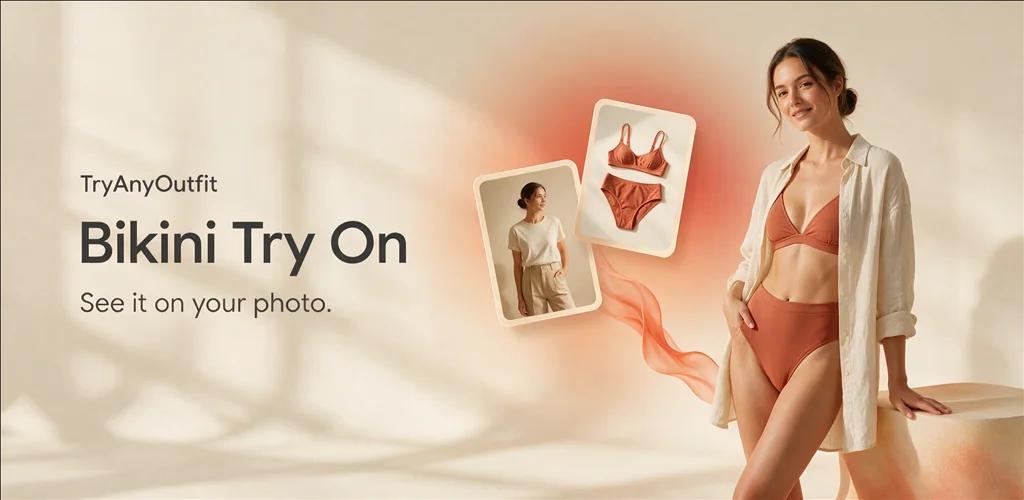
Bikini try-on. Picture your next beach look.
Deciding between a solid bikini and a print? Add your photo and the bikini you have in mind. Continue in Studio to create a visual preview with paid credits, then compare it with the store photos before you order.
Set up your virtual try-on
Add your photo and the swimwear you want to preview. Uploads are free. Generating images in Studio requires sign-in and paid credits.
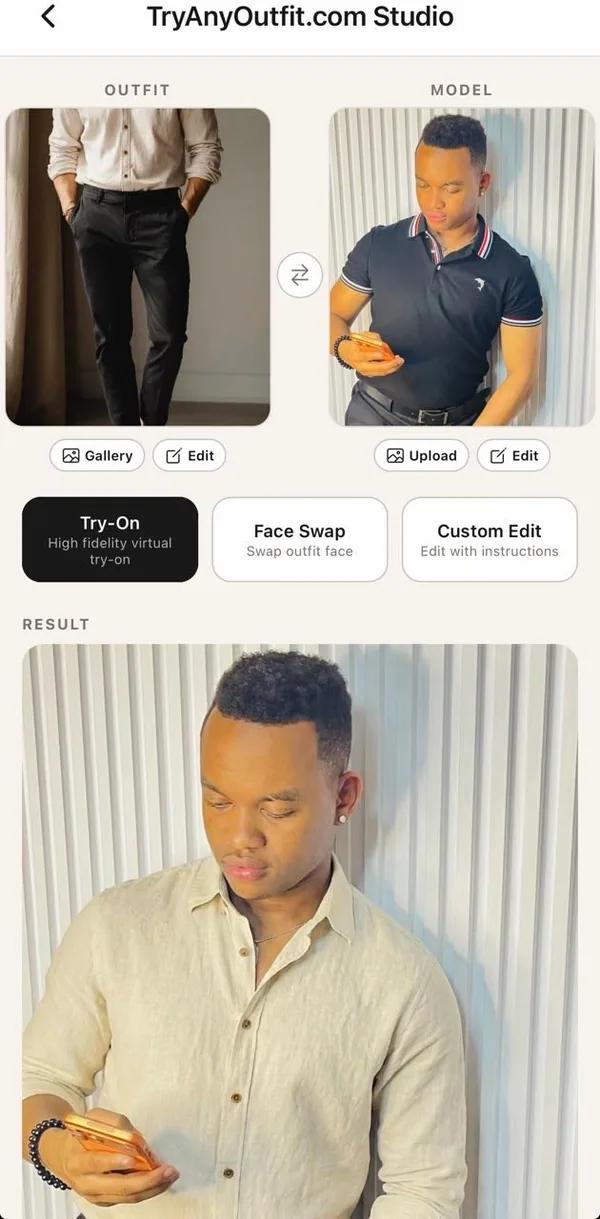
Start with the choice you want to make
Choose one question for each preview: the color, the print, or how the top and bottom look together. Keeping your source photo the same makes two bikini options easier to compare. A preview can help you narrow a shortlist; it cannot tell you how a waistband feels or whether a top stays secure in the water.
- Color: compare two product photos taken in similar lighting.
- Pattern: use a clear reference where the full print is visible.
- Matching separates: include the exact top and bottom you plan to buy in one reference image.
Bring the actual bikini you are shopping for
A clear retailer photo works better than a busy collage with several different bikinis. Include both pieces, with straps and ties visible. If the reference shows a model, choose a photo where their arms, hair or a cover-up do not hide the swimwear. Check that you are using the right colorway; a similar product photo can produce a convincing preview of the wrong item.
Read the preview alongside the product details
AI can change small details, including strap placement, seams, hardware and the amount of coverage. Compare those areas with the original product image before using the result to decide. Use the retailer's size chart, fabric information and return policy for the purchase itself. The generated body shape and apparent fit are not measurements.
A bikini try-on app, or the browser
You can prepare your bikini preview here on a phone or laptop. The Generate in Studio button carries your selected photos into the web editor, where sign-in and paid credits are required. If you prefer an app, TryAnyOutfit is also available for iPhone and Android. Use the same account to access your credits. You do not need to install an app to use the web Studio.
Questions people ask first
Can I try a bikini on my own photo?
You can use your own photo and a bikini reference for an AI visual preview in Studio. Use a clear, well-lit image with your torso and hips visible and without a bag or crossed arms covering the area. Generation requires paid credits.
Does bikini try-on show my correct size?
No. AI generates an appearance preview and may alter proportions or garment details. Check your measurements against the retailer's size chart and read its support and coverage information.
Can I compare different tops and bottoms?
Yes. Prepare a reference showing the combination you want, then compare another combination using the same person photo. Each generated image uses a credit.
Is there a free bikini try-on generation?
TryAnyOutfit does not currently offer free generations. Selecting photos on this page is free; creating the preview in Studio requires sign-in and paid credits.
Prefer it on your phone?
The app shares the same account, credits and looks.